Canceling and Rescheduling Appointments
Canceling and Rescheduling
There are 2 ways that advisors can cancel or reschedule an appointment: through Appointment Manager or through an Advising Case. Please note that deleting the appointment directly from your UMD or TerpEngage Calendar does not actually cancel the advising appointment itself (which means the student will not be notified).
Through Appointment Manager:
- Open Appointment Manager by clicking Appointment Manager in the lower-left corner of the screen.
- Find the appointment you would like to cancel or reschedule using the blue calendar and date selector arrows.
- Click on the appointment.
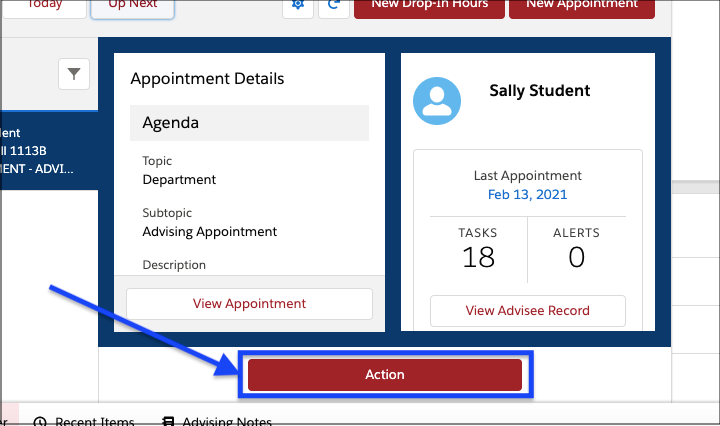
- Click the red Action button shown in the image below.
- To cancel the appointment:
- Click Cancel Appointment.
- Add an optional comment about the reason for cancellation.
- Click Cancel It to finish canceling the appointment. You can click Never Mind to exit the cancellation screen without canceling the appointment.
- To reschedule or edit the appointment:
- Click Edit Appointment.
- Click Save once you have made the necessary changes.
Through an Advising Case Record:
- You must first access the Advising Case of a student attendee by searching their name in the search bar at the top of the screen and clicking the result with the Advising Case icon,
 , attached.
 - Find the appointment you would like to cancel or reschedule. All of the student’s upcoming appointments are shown under the "Upcoming Appointments" heading.
- Click the appointment topic to open it.
- Click Cancel Appointment.
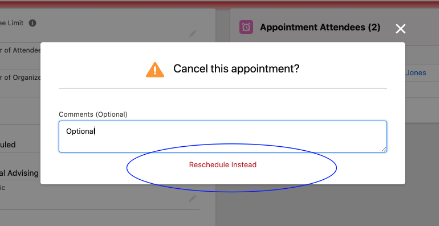
- Indicate an optional reason and click Cancel It or select Reschedule Instead to return to the scheduling window.
Where to View Canceled Appointments
- Open a student's Advising Case by searching their name in the search bar at the top of the screen, then clicking the result with the Advising Case icon.
- All of the students’ appointments are shown in this “Appointments” tab in the middle window.
- Scroll down in the middle window until the “Canceled Appointments” heading appears.
- A preview of the student’s canceled appointments appears here. You can click the topic of an appointment to open it or click View All to view all canceled appointments for the student.