Canceling Another Advisor's Appointment
Overview
Step-by-step Guide
- You must first open the Advising Case of a student attendee by searching their name in the search bar at the top of the screen and clicking the result with the Advising Case icon,
 , attached.
 - Find the appointment you would like to cancel or reschedule. All of the student’s upcoming appointments are shown under the “Upcoming Appointments” heading in the middle of the page.
- Click the topic of the appointment to open it.
- Click the down arrow corresponding to any of the appointment attendees under the “Appointment Attendees” heading followed by the Edit button that will appear.
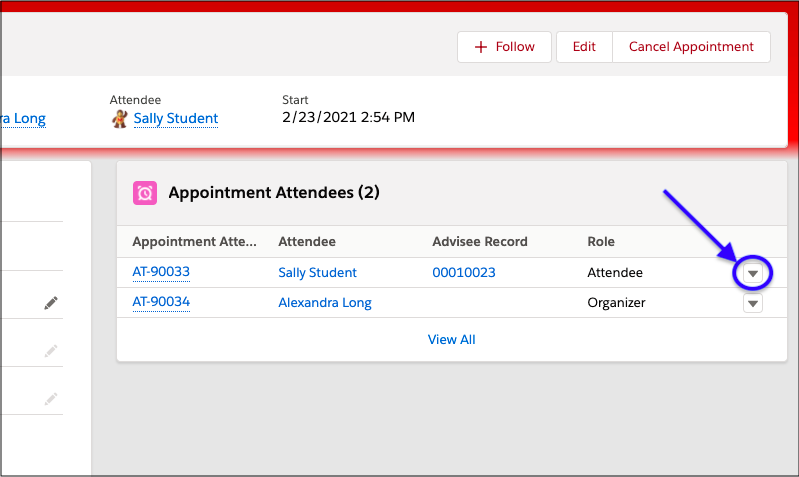
- Click the Edit button that appears.
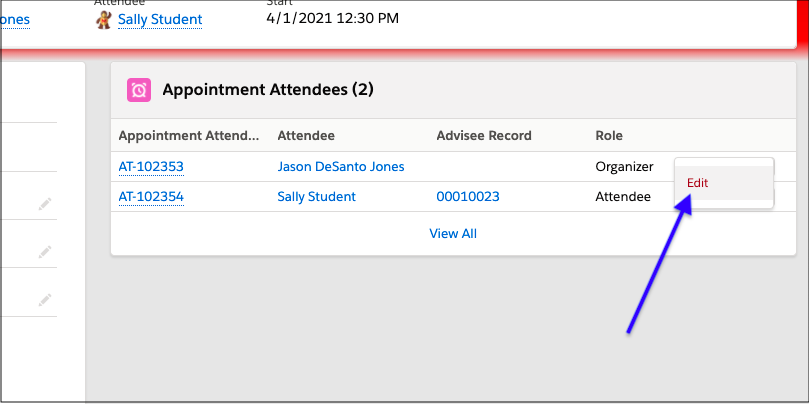
- In the Status drop down menu, select “Canceled” to change the status of the appointment to canceled.
- Click Save.
- You have now canceled the appointment. The student will receive an email confirmation about the cancellation and the appointment will be moved to “Canceled” in both the student and advisor view. Remember to refresh your browser if you do not see that the appointment has been moved.