Group Appointments
Overview
How to Create Group Appointment Availability
Group appointments are available for advisors who wish to meet with multiple students simultaneously.
The process of creating this availability is similar to the process of creating recurring availability for individual appointments. For the appointment availability type, select Group Availability.
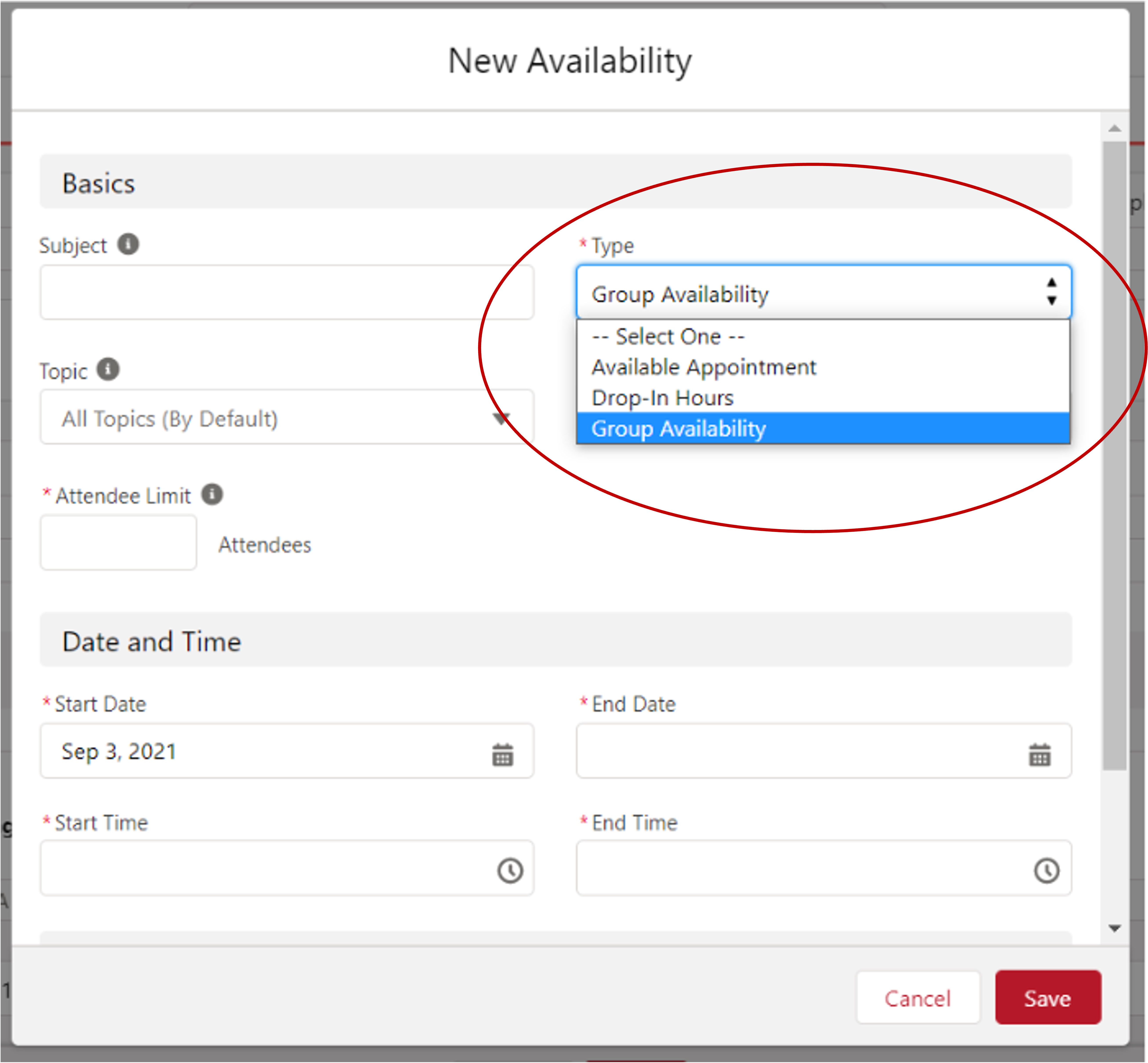
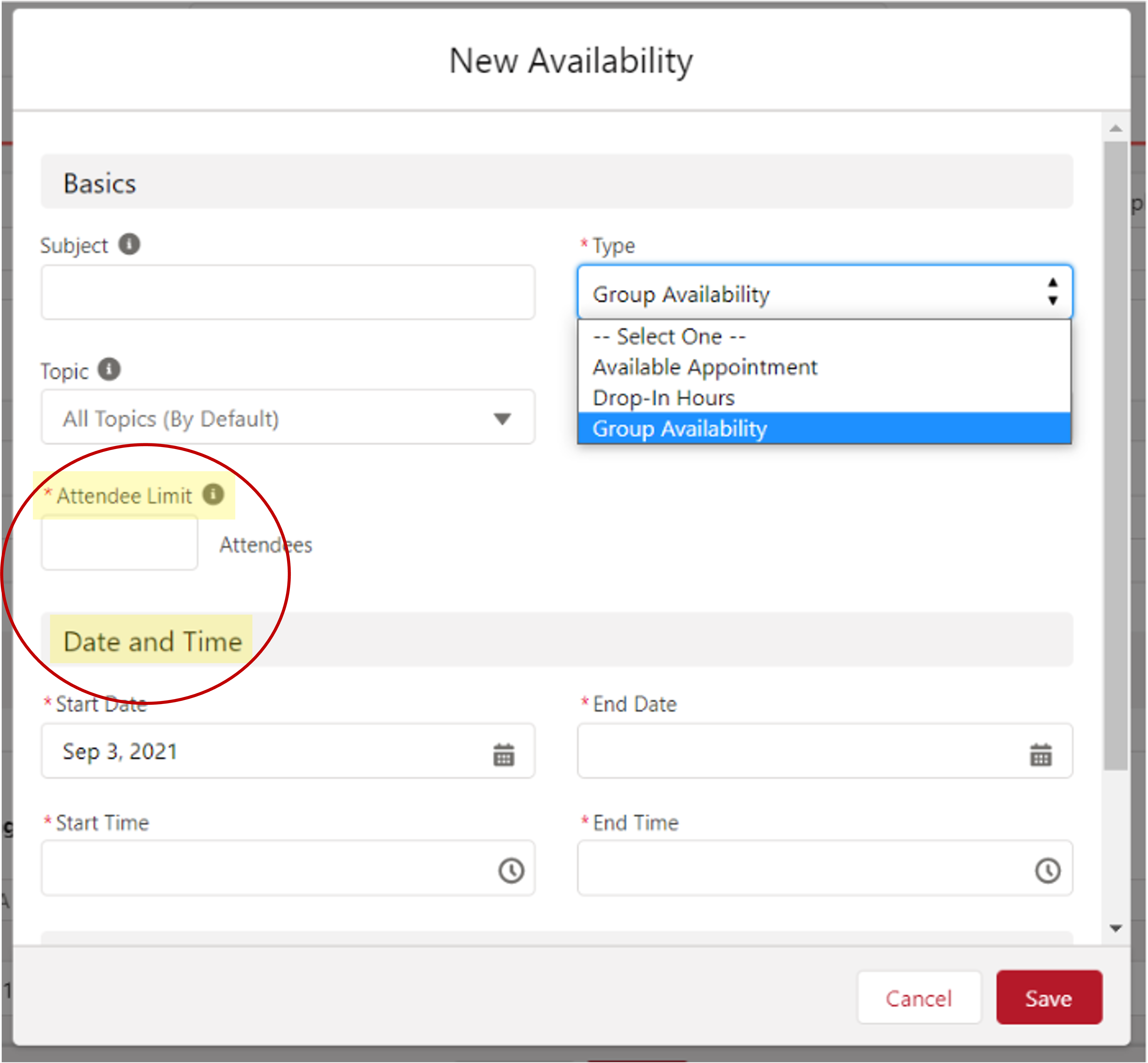
Afterward, enter a number for your desired Attendee Limit, and select your desired Date(s) and Time(s).
How to View, Edit, or Cancel a Group Appointment
If the First Student Has Not Been Scheduled
There is currently no way for an advisor to schedule the first student into a an existing group appointment. Instead, that student musch schedule themselves through the Community.
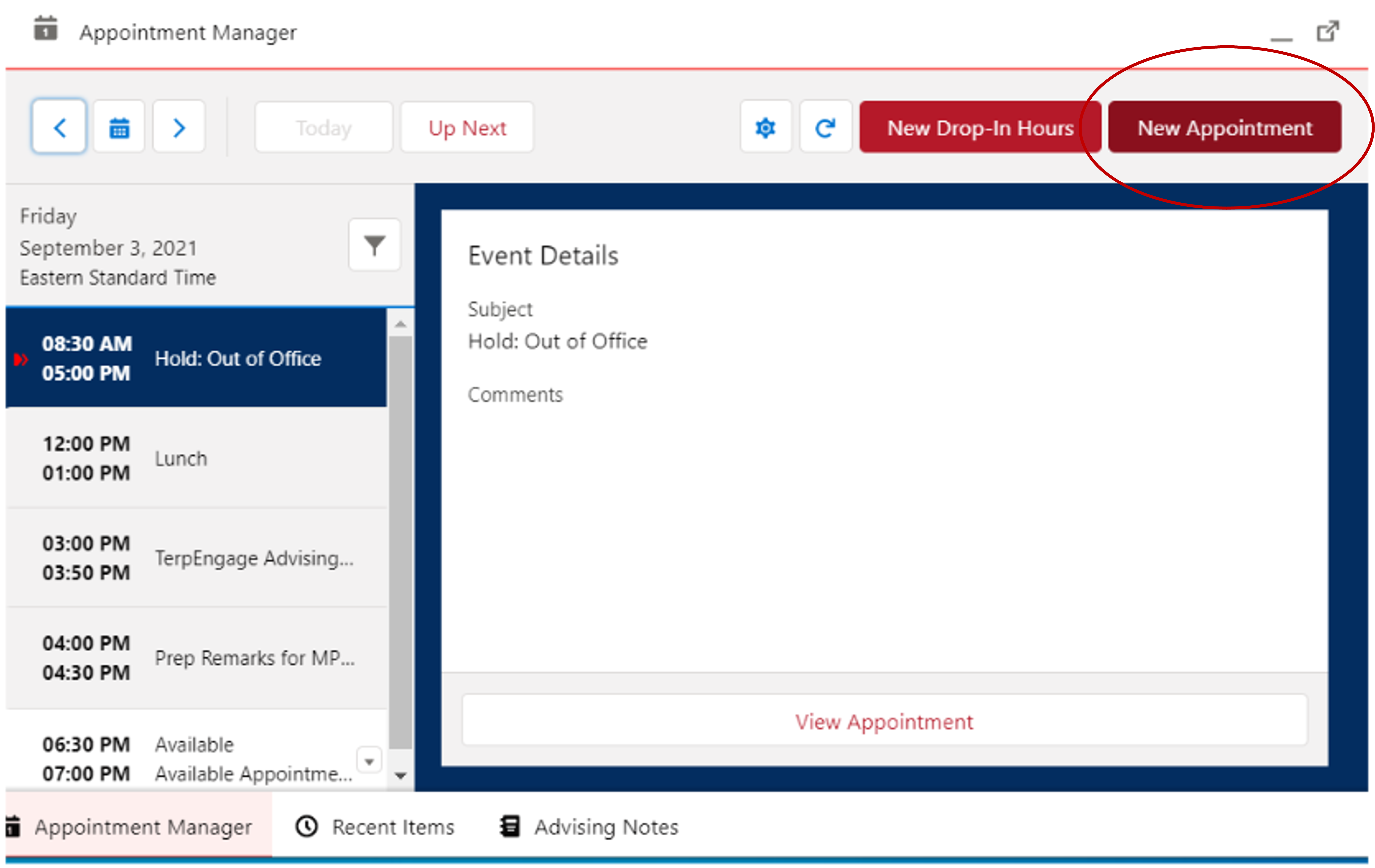
However, advisors may schedule the first student into a new appointment that does not already have other students during the process of creating a new group appointment and selecting New Appointment using the Appointment Manager.
How to View a Group Appointment Once the First Student Has Been Scheduled
There are several ways that advisors can access and view existing group appointments - through the Appointment Page, through the Appointment Manager, or via that Appointment Information on an advisee attendee's case. Please note that your UMD or TerpEngage calendar will not show the UID's or names for all attendees.
View Through the Appointment Page
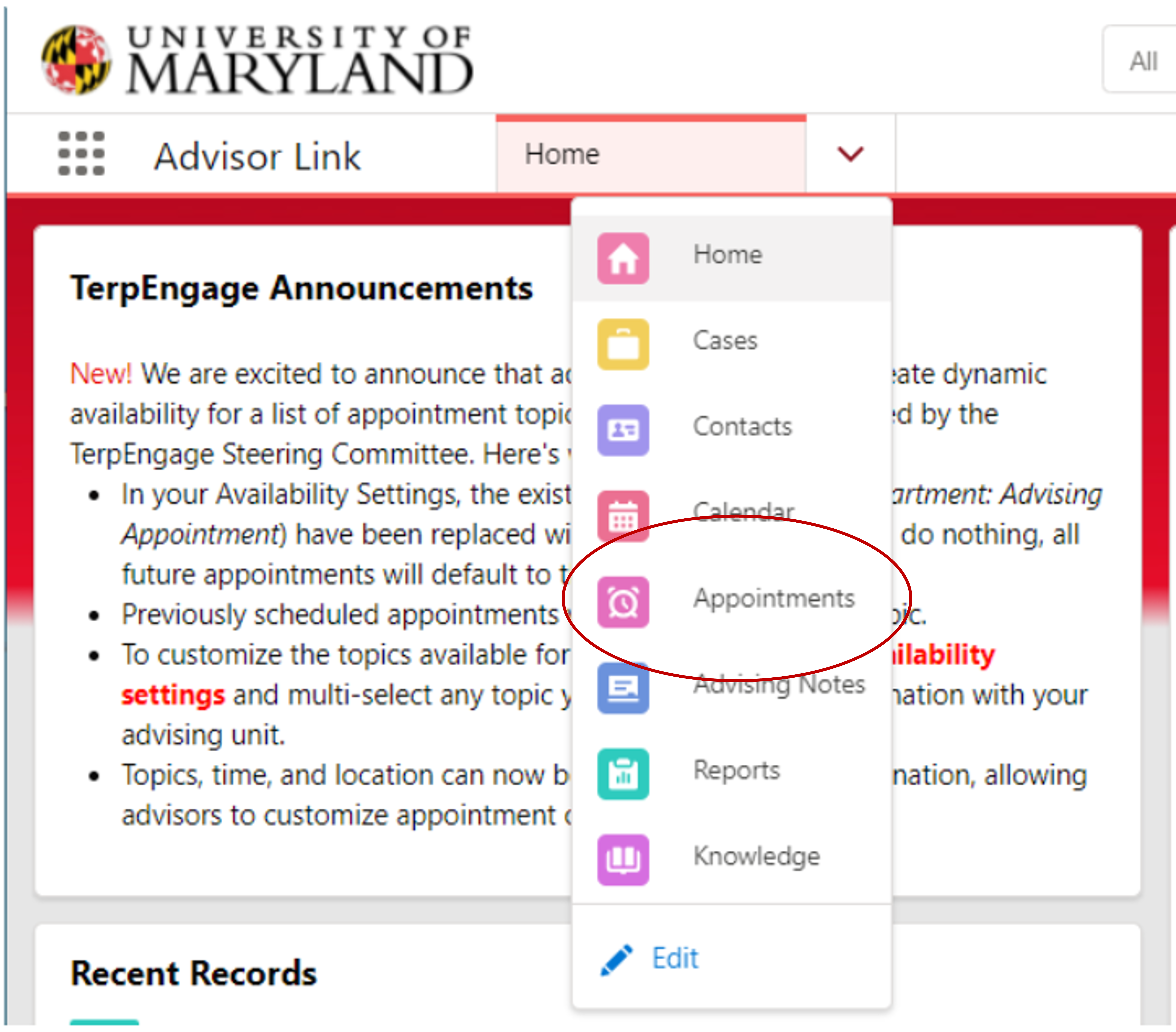
Toward the top left of the TerpEngage screen, there is a downward-facing arrow near Advisor Link. Select that arrow to open a drop-down menu from which you can select Appointments.
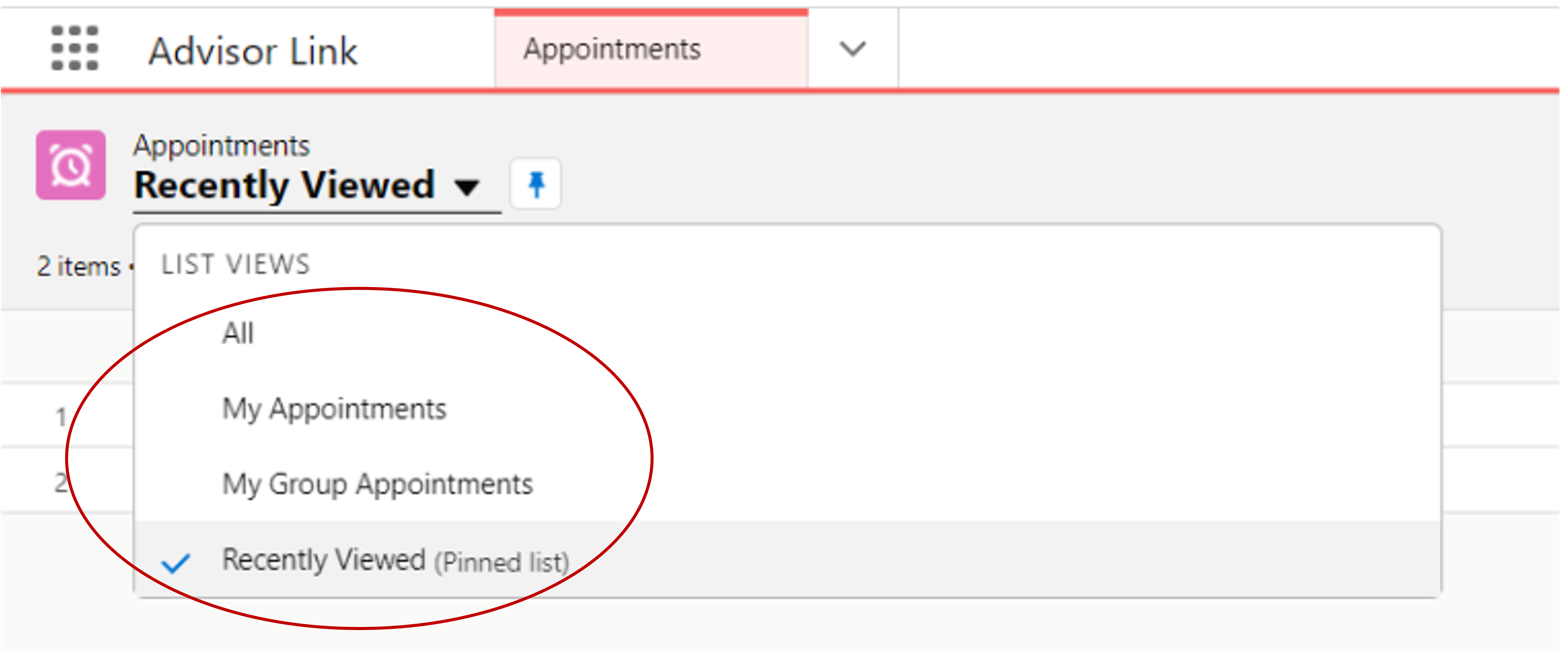
On the Appointments Page, you can select the arrow next to "Recently Viewed" to toggle between "All," "My Appointments," and "My Group Appointments."
View Through the Appointment Manager
Open the Appointment Manager located at the bottom left of the screen and search through the dates of your upcoming appointments. From there, you may locate and select the desired group appointment.
View Through Appointments on an Advisee's Case
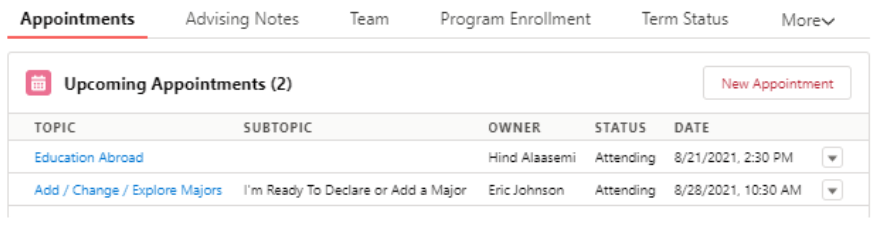
Open the Advisee Case for one of the intended appointment attendees and select "Appointments." Then, select the desired group appointment.
How to Edit or Cancel A Group Appointment After the First Student Has Been Scheduled
Adding Attendees to Existing Appointments
Once you've reached the screen for the desired group appointment, locate the New button on the right side of "Appointment Attendees."
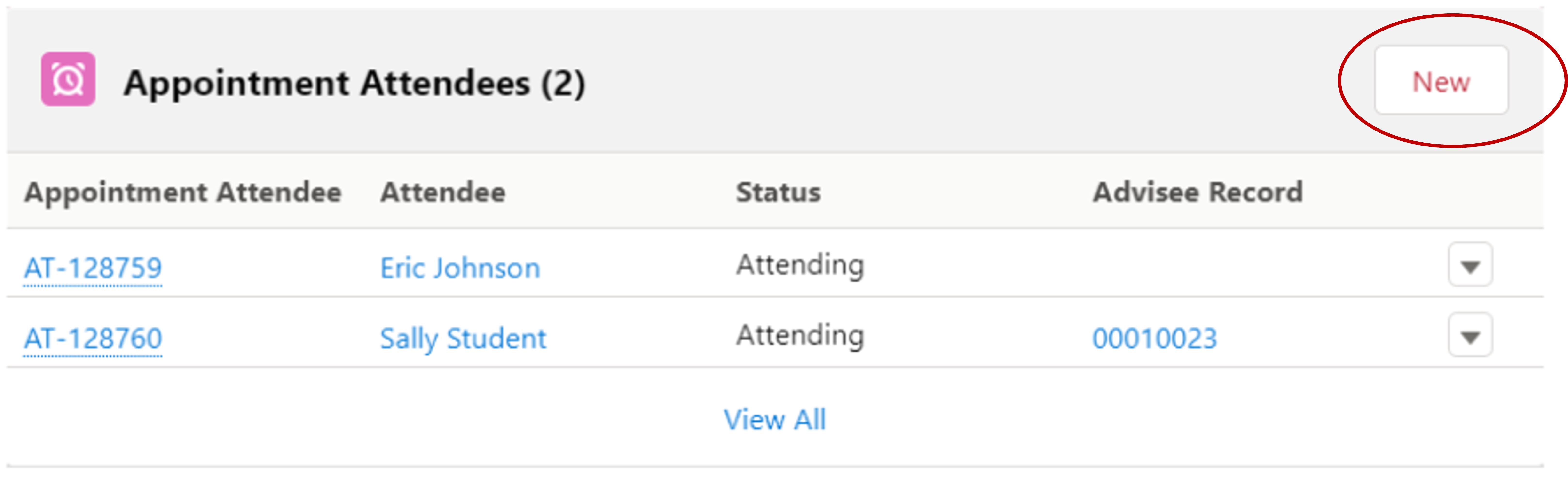
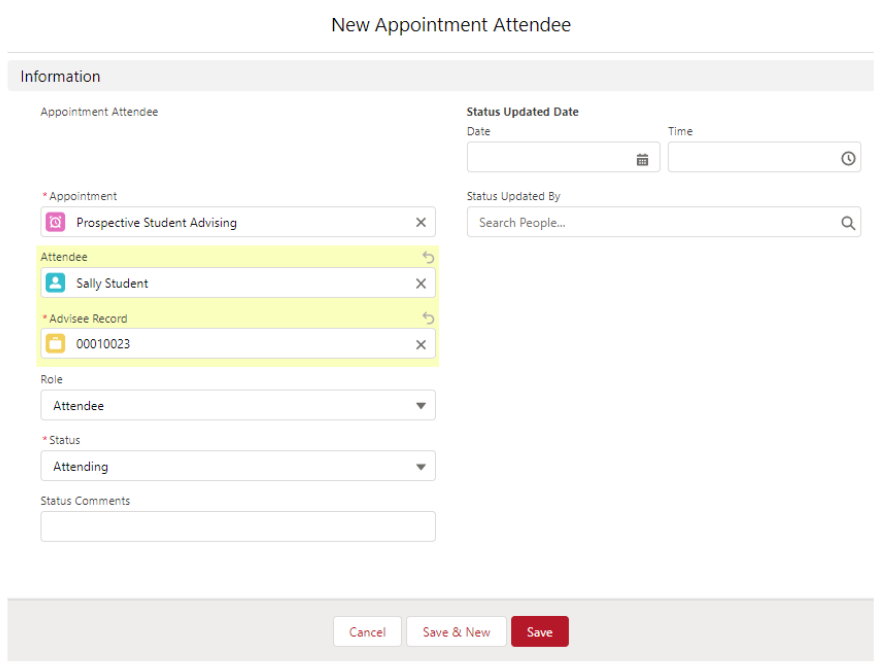
Add the new appointment attendee, making sure to enter the student under the "Attendee" and "Advisee Record" fields. Typing the student's name or UID will initiate the search.
Updating Attendee Status (Canceled, No Show, or Checked In)
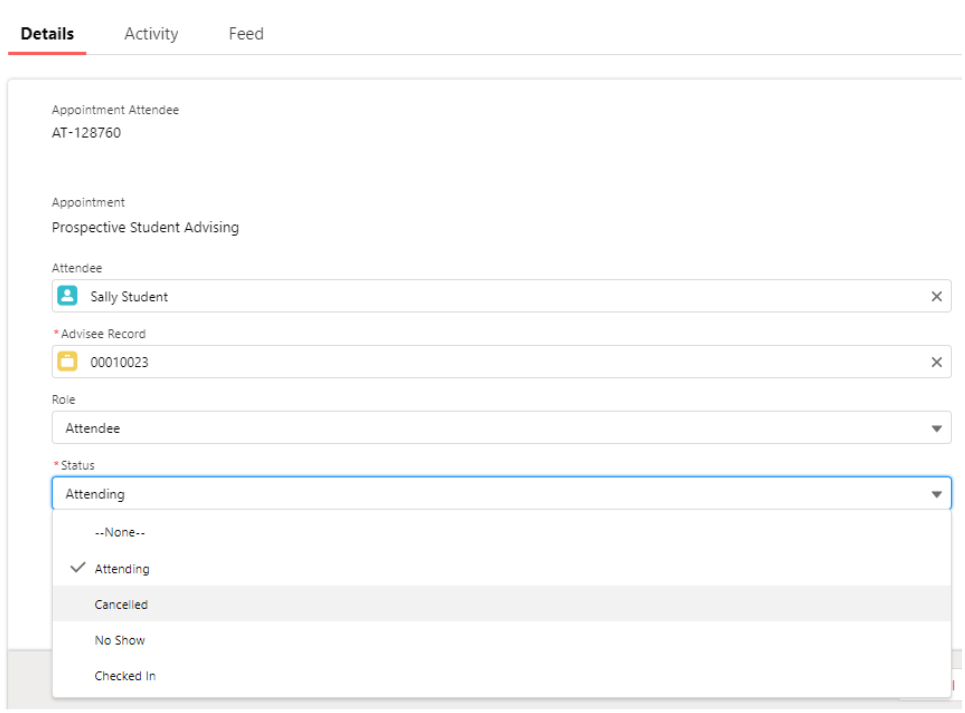
You can update the status of an attendee by clicking on them under the "New Appointment Attendee" section. This will open a window where you can edit their status. Then, select the pencil icon to the right of the "Attending" status.
If you wish to cancel a student from an appointment, it is recommended that you update the status instead of using the delete option. Changing a student's status to "Canceled" will trigger an email to the student. Deleting them will not.p